iOS controls for Arduino
A clean control panel for Bluetooth projects
Build a board in the app, assign channels, then read the controls in Arduino code. Buttons, joysticks, sliders, toggles, D-Pads, displays, labels, indicators, gauges, console messages, and alerts all use the same simple loop.
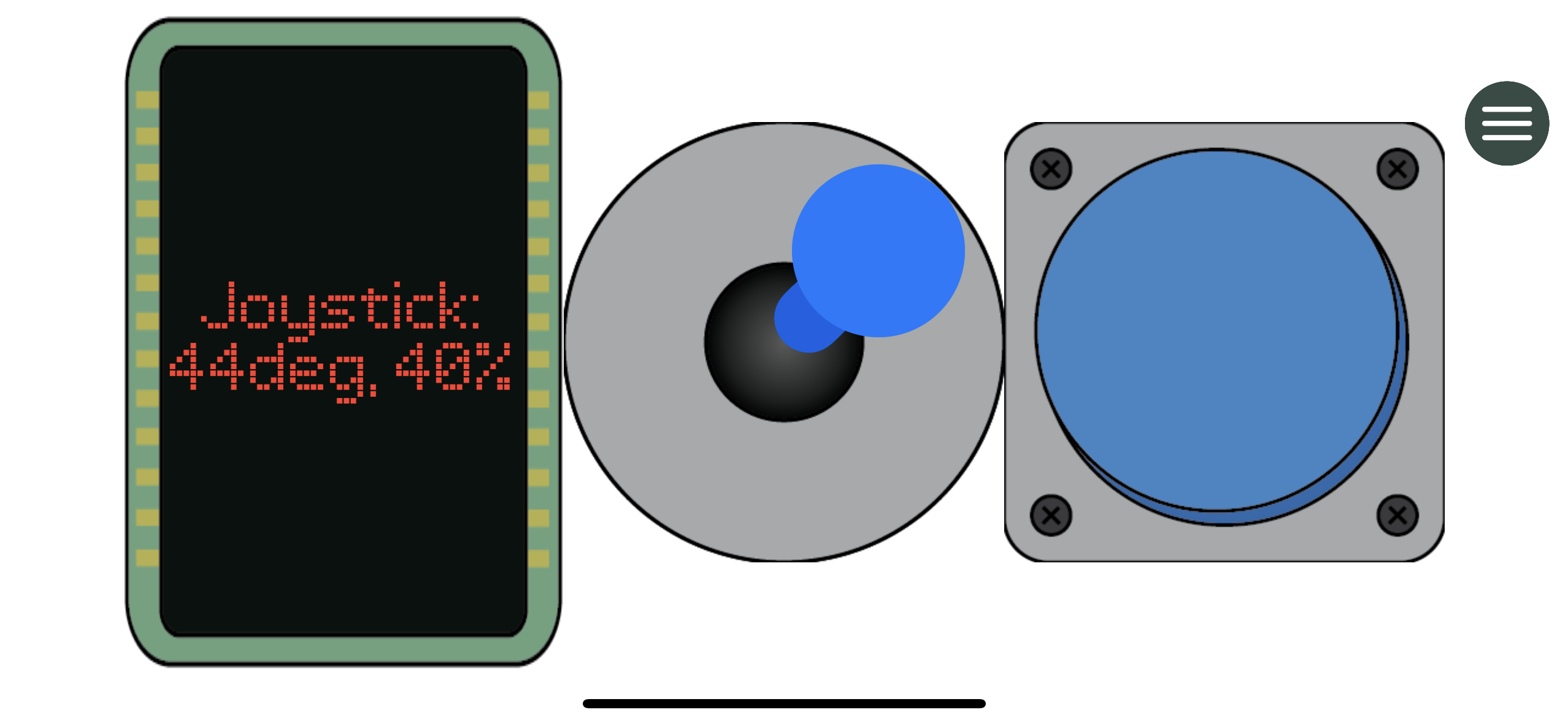
Build the board. Read the controls. Send the readouts.
Bluetooth Serial Connect gives an Arduino project a custom iPhone or iPad control panel. Pick components in the app, read their channels in your sketch, and update app readouts with one-line API calls.
The whole system in four moves
-
Place components in the app
Buttons, joysticks, sliders, toggles, D-Pads, displays, labels, indicators, and gauges all get a channel number.
-
Connect through BLE serial
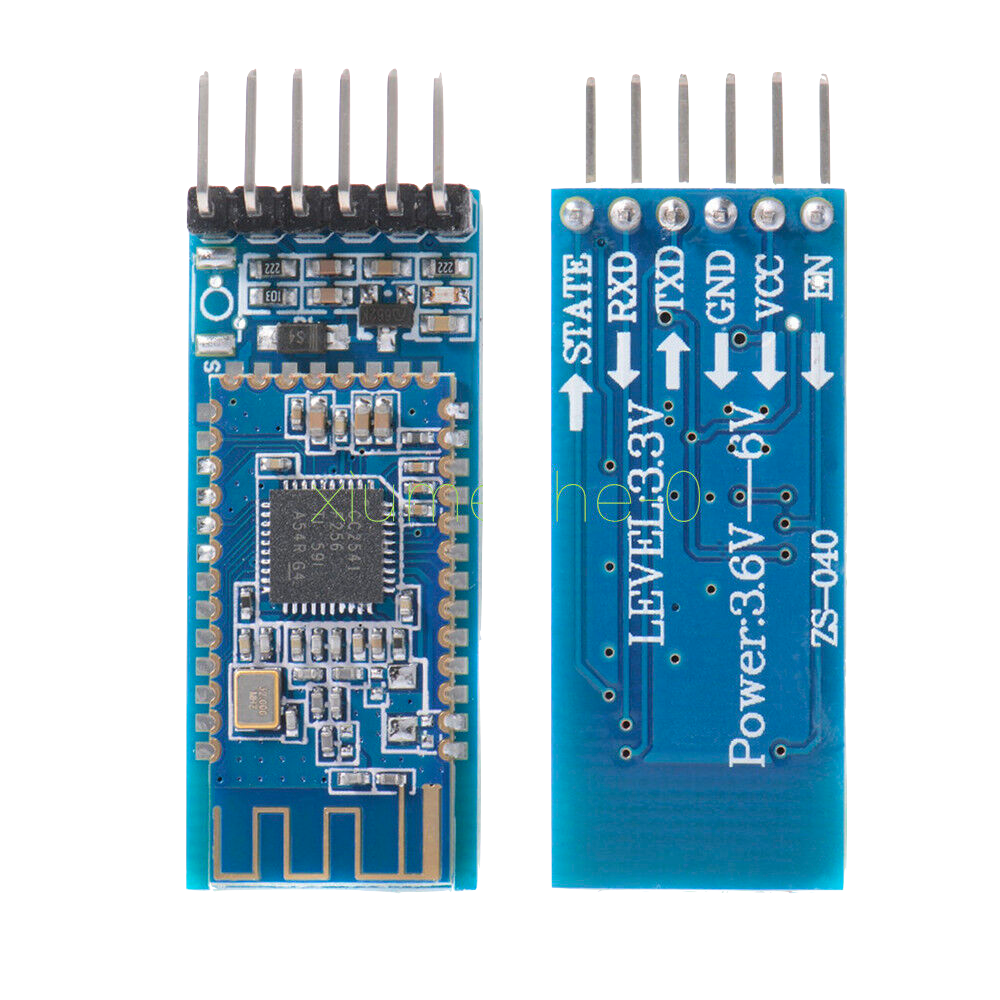
An HM-10 style BLE module advertises to iOS and forwards the app's bytes to your microcontroller over UART.
-
Call readSerial() in loop()
The library parses each line and refreshes control state. Your sketch reads methods like
wasButtonPressed(),getSlider(), andisToggleOn(). -
Send status back
Use
setDisplay(),setLabel(),setIndicator(),setGauge(), andsendAlert()to keep the board live.
void loop() {
  serialConnect.readSerial();

  if (serialConnect.wasButtonPressed(0)) {
    serialConnect.sendAlert("Button 0 pressed");
  }

  if (serialConnect.isSliderUpdated(0)) {
    analogWrite(9, (int)serialConnect.getSlider(0));
  }

  if (serialConnect.wasToggleUpdated(0)) {
    digitalWrite(2, serialConnect.isToggleOn(0) ? HIGH : LOW);
  }

  serialConnect.setGauge(analogRead(A0), 0);
}